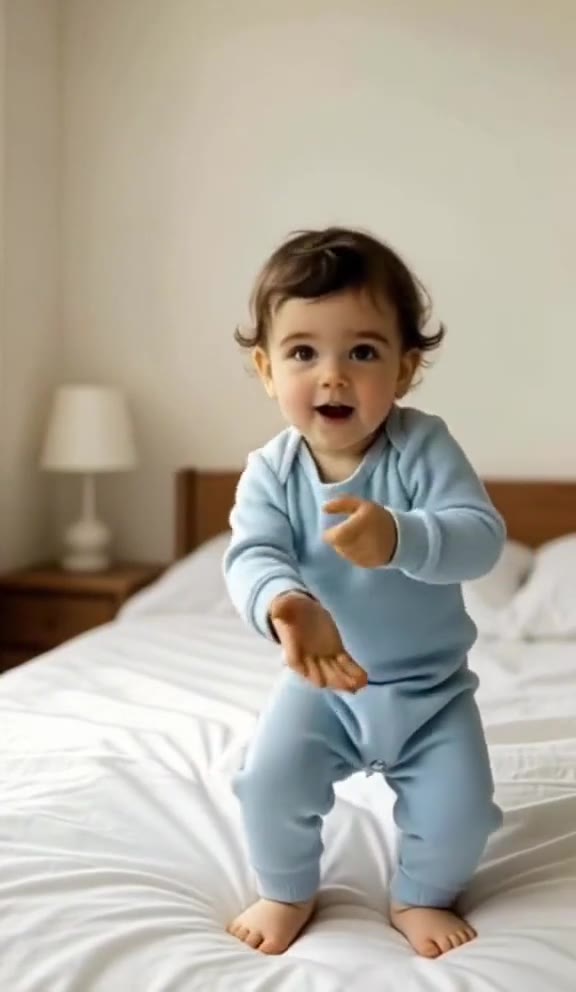
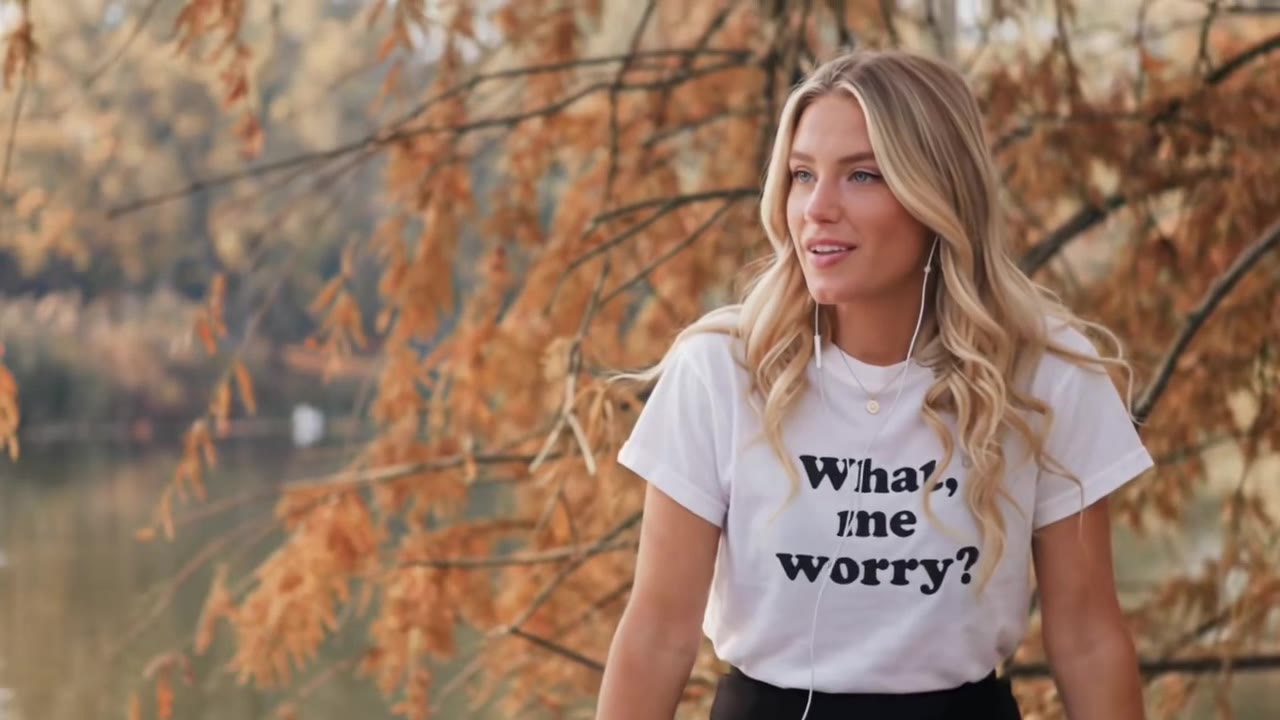
The iPhone interaction effect is a 15-second selfie clip in which hand gestures set off screen effects: rain for two thumbs down, fireworks for two thumbs up, lasers for the horns sign and hearts for heart hands. You can make the AI version on videosi from one photo of you, with no prompt, no phone footage and no watermark.
Key takeaways
- The effects come from the Reactions Apple added in iOS 17 in 2023, often searched as iPhone reactions or FaceTime reactions; the current wave began in Vietnam with posts dated 2026-11-06.
- The AI version draws the gestures and effects itself, so it needs no iPhone and the effects are not pixel-identical.
- A sharp head-and-shoulders photo of one adult, with hands out of the frame, gives the best likeness.
- A 15-second video is 13 credits on the Standard tier at 720p (an account's first video costs at most 10), with the original sound on it, and failed renders return their credits.
- Label the clip as AI-generated when you post it.
In this guide
- Which gestures trigger which effects on an iPhone?
- How do you set the effects off on a real phone?
- What happened in Vietnam to start this wave?
- What is different between the AI version and a real phone?
- How do you pick the best photo?
- Why do hands go wrong so often?
- What happens to the sound?
- Do you need to label the video as AI?
- Is it too early or too late to post it?
- What does it cost, and what if it fails?
Which gestures trigger which effects on an iPhone?
Apple added video reactions with iOS 17 in 2023, and its support page for reactions lists the pairs. Two hands forming a heart bring hearts. One peace sign brings balloons, and two peace signs bring confetti. One thumb up or down gives a thumbs reaction, both thumbs down bring rain, both thumbs up bring fireworks, and the horns sign on each hand brings lasers. Apple's own support page for reactions has the full list. videosi is not affiliated with Apple.
The trend uses four of these on purpose, because they look the biggest on screen: rain, fireworks, lasers and hearts. They also have clearly different shapes, so each gesture is easy to read even in a fast clip. Our iPhone interaction effect page follows that same set, in the order of the reference selfie.
How do you set the effects off on a real phone?
According to Apple, you make the gesture in front of the camera, away from your face, and hold it until the effect appears. You can also pick a reaction from a menu during a video call instead of using your hands. The effect needs a moment to register, which is why creators in these clips hold each pose for a beat before moving to the next.
That pause matters for the AI version too. A gesture that flashes by in half a second looks wrong, so the 15-second clip gives each pose a clear window: rain at the start, a thumbs up that clears it, fireworks, lasers, hearts and a plain ending.
What happened in Vietnam to start this wave?
The gestures are three years old, but the trend is not. The earliest posts we found are Vietnamese and dated 2026-11-06. They were tutorials: how to switch the effects on for the iPhone camera and inside TikTok, usually under the Vietnamese name hiệu ứng tương tác iPhone, sometimes called hiệu ứng bá khí.
By 2026-11-07, creators were posting their own clips, and CapCut AI tutorials appeared that copy the effects onto any video. We could not confirm a single original creator, and the clips use many different sounds, so we mark the stage as emerging. We will not name anyone as the source until it is clear.
What is different between the AI version and a real phone?
On a real iPhone, the phone detects your hands and draws the effect over the live picture. In the videosi version nothing is detected. An AI video model, ByteDance Seedance 2.0 or 2.5 depending on the tier, draws you, your gestures and the effects together as one clip.
That has three consequences. First, you do not need an iPhone, a camera or any footage: one photo is enough. Second, the effects look like the originals but are not pixel-identical, because they are generated. Third, you cannot choose the gestures or their order, which follow the reference clip. If you need your own gestures in your own room, filming on a phone is still the right tool. If you want the look without filming, the AI route is quicker.
How do you pick the best photo?
The clip is a chest-up selfie, so a photo of your head and shoulders matches best. Face the camera, use even daylight from the front, and keep the photo sharp. Your hair and clothes in the photo are the ones that appear in the video, so choose an outfit you want to see.
Avoid beauty filters and heavy colour grading, because skin tone and face shape drift away from you in motion. Crop to the one adult you want in the video: group photos and collages can merge faces. Likeness is never guaranteed, so treat the first result as a draft.
Why do hands go wrong so often?
Hands are the hardest part of this clip. The gestures change nearly every second, fingers cross when you make a heart or the horns sign, and each pose has to keep five natural fingers. Fast changes can give extra fingers or fused hands for a few frames.
You can lower the risk with the photo. A picture with your hands out of the frame works better than one with a hand across your face, since the model draws the gestures itself. Another quirk is that the rain cloud and the lasers can wash over your face and soften the likeness briefly. The heart hands beat is the one that drifts most often, so check that part first when you review a render.
What happens to the sound?
There is no single confirmed song for the trend: the Vietnamese clips we found use different songs and original sounds. The videosi video comes with the original sound of the reference selfie clip already on it, so you get the sound without adding anything.
If you want a different track, swap it when you post on TikTok or Instagram. Pick music you have the right to use on that platform, and let the app's own sound library handle the licensing.
Do you need to label the video as AI?
We recommend it every time. A label tells viewers the clip is an AI recreation and not a recording from a phone, and the simplest route is to turn on the AI-generated content label in the app when you upload. Each platform sets its own rules for AI content, so check them before you post.
Use your own photo, or the photo of an adult who agreed to it. The effect is made for one adult per video, and it does not support pets or children. Do not upload strangers. A clear caption such as "made with AI from one photo" also helps viewers understand the joke.
Is it too early or too late to post it?
As of 8 November 2026 the wave is just starting. The iPhone feature behind it has existed since 2023, so interest in the gestures does not depend on this one wave. If it fades, the clip still works as a short, bright selfie with a few effects.
A good caption names the effect in plain words, for example iPhone interaction effect, so that people searching for it find the clip. Keep the caption honest: say it is an AI recreation, not a recording from a phone.
What does it cost, and what if it fails?
A 15-second video is 13 credits on the Standard tier at 720p, and an account's first video costs at most 10, so the Single pack of 10 credits for $6.90 covers it. There is no free generation, credits never expire, and higher tiers cost more credits. Rendering takes several minutes, and the result stays in My creations if you close the page.
A failed, timed-out or blocked render gives its credits back automatically. Because hands and likeness can need a second try, plan for the chance that one render is not enough, and read the full steps on the page before you start.