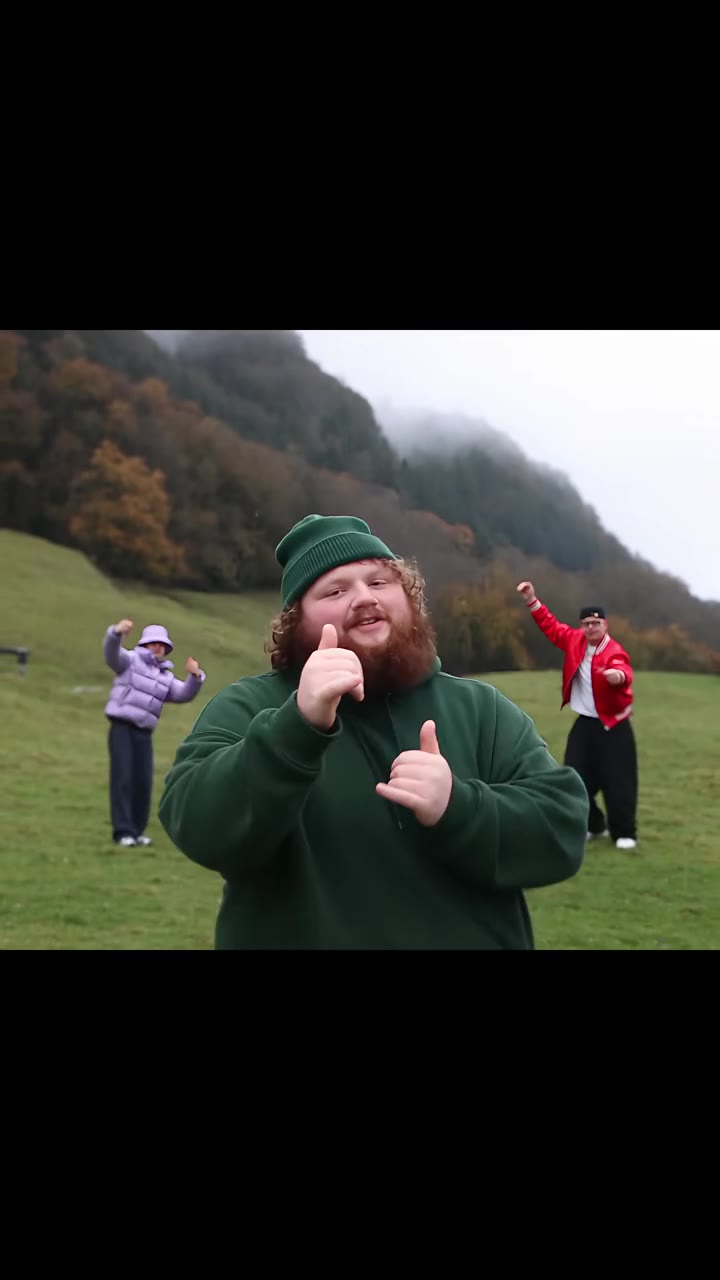
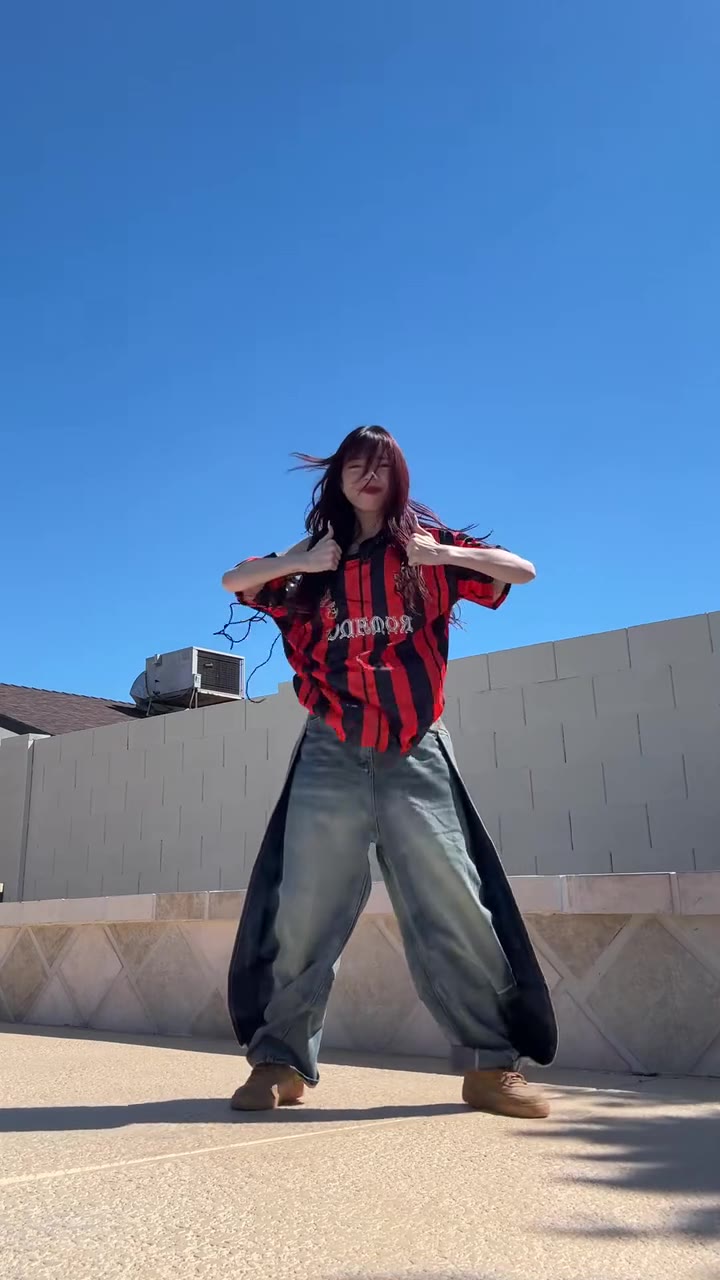
Office parkour AI is a short video in which one photo of you replaces the runner in a remake of the Parkour! scene from The Office, and you can make it on the office parkour AI page without writing a prompt. You pick one of two scenes, 7 or 10 seconds long, and the finished MP4 comes with the reference sound already on it.
The basics are covered on that page. Below are the deeper questions: where the original scene came from, why it suits AI so well, what the model keeps and replaces, and how to get a clean result.
Key takeaways
- The original is the cold open of the Season 6 premiere, "Gossip", which aired on NBC on 17 September 2009.
- The two scenes are the couch flip and desk vault (7 seconds) and the desk jump and trash-can dive (10 seconds), each 10 credits on Standard at 720p.
- One photo replaces one runner. The coworkers and the office stay as they are in the reference.
- You cannot put the show's actors in it, because famous faces are usually blocked by the model's safety check.
- videosi is independent and has no connection with NBC, Universal or The Office.
In this guide
- Who made the original cold open?
- Is there a longer version of the scene?
- Why does the scene suit AI so well?
- Why are the two scenes different lengths?
- What does the model keep and what does it replace?
- Why can't I use a photo of the cast?
- What photo and outfit work best?
- What can go wrong in the flips?
- How do I post it with the sound?
- What does one clip cost?
Who made the original cold open?
The scene opens "Gossip", the first episode of The Office's sixth season. According to Wikipedia, Paul Lieberstein wrote and directed it, and it aired on NBC in the United States on 17 September 2009. In the cold open Michael, Dwight and Andy run through the office climbing desks and jumping off chairs in an attempt at parkour.
That is the whole premise, and it is why the scene travels so well. Nobody needs to know the plot of the episode. Three adults are far too old and far too clumsy for the sport, and they commit anyway. The same joke works with any new person in the lead role, which is what the AI remakes rely on.
On the AI side, remakes of the scene began appearing on TikTok in October 2026, and our trend radar first caught the search term on 13 November 2026, so the wave is only starting.
Is there a longer version of the scene?
Yes. Looper reports that the extended cold open from "Gossip" is on Peacock, in the Season 6 Superfan Episodes. The longer cut adds more of the three jumping off furniture, crashing into the elevator doors and springing off walls. Andy also tries to ride a giant tire, and after a short break in the break room they resume, to Stanley's annoyance.
This matters for remakes because the aired scene is already a compressed version of the idea. The extra minute shows how many different stunts the joke can hold. The AI clips take the same approach, choosing a few clear stunts and running them back to back instead of trying to copy the whole sequence.
Why does the scene suit AI so well?
Three reasons. First, the stunts are big, readable shapes: a sprint toward the camera, a head-first flip over a couch, a scramble across a desk. A model can follow a big shape much more easily than a subtle gesture.
Second, the setting does most of the work. An office corridor, a waiting-room couch, a curved reception desk and rows of seated coworkers are all in the reference clip, so you do not have to describe any of it. Your photo only has to supply the person.
Third, the humour comes from the crash, not from polish. A landing that is a little off still reads as part of the joke. That is a forgiving fit for a technology that is weakest at fast, complicated body motion.
Why are the two scenes different lengths?
The couch flip and desk vault runs 7 seconds, and the desk jump and trash-can dive runs 10. Each follows a different reference clip, and the length is simply how long the stunt in that clip lasts.
- Couch flip and desk vault, 7 seconds. You sprint straight at the camera down the corridor, dive head first over the grey couch, then scramble across the curved reception desk while a coworker leaps over it behind you.
- Desk jump and trash-can dive, 10 seconds. You stand on a desk covered in paper and jump, crash and roll across the floor while a coworker films on a phone, then sprint down a hallway and dive head first into a trash can.
If you want the closest thing to the famous original, take the couch flip. If you want a longer story with a punchline at the end, take the trash-can dive. Both are 10 credits on Standard at 720p, so the choice is about taste, not cost. You can try both with the same photo on the Office Parkour AI generator.
What does the model keep and what does it replace?
Only one person is replaced. The runner in the reference is swapped for the person in your photo, with your face, hair, skin, hands, build and outfit. Everything else stays as in the chosen clip, including the office, the camera moves, the timing, the seated coworkers and the second runner who vaults the desk behind you.
The runner in each reference wears a specific look, so the instruction names what has to go: the glasses, shirt and tie in one scene, and the blazer and blouse in the other. Anything that is not named tends to stay, which is a common reason other tools leave a ghost of the original person on screen.
The page uses a model from ByteDance, Seedance 2.0 or 2.5, and you pick the tier. One photo and a motion reference go in, and a video comes out. You never see the prompt.
Why can't I use a photo of the cast?
Photos or stills of famous actors are often rejected by the video model's safety check, and the render then fails. That includes Michael Scott as played on screen. The two reference clips on the page are AI remakes with no cast members, so you play the part yourself.
The same rule keeps things simple on the rights side. videosi is independent and not connected with NBC, Universal or The Office, and a clip made here should not be presented as official footage from the show. Use a photo of yourself, or of an adult friend or coworker who has agreed to it. Do not upload photos of children or of people who have not agreed.
What photo and outfit work best?
Use one sharp, evenly lit photo of one person, ideally from head to shoes. Both scenes show your whole body flipping and falling, so a head-only photo forces the model to invent your legs, shoes and trousers.
- Look toward the camera. The first seconds of the couch flip run straight at the lens, so your face is large in the frame.
- Skip hats and sunglasses. Anything covering the face makes the likeness drift during the flips.
- Pick a photo of only you. A second person in the frame can end up in the scene.
Your outfit is also your costume. A shirt and tie or a blazer looks most like the meme, but whatever you wear in the photo is what you wear in the video. The model does not copy the original runner's clothes onto you.
What can go wrong in the flips?
Fast flips and falls are where video models struggle most. The face can blur for a few frames while you are upside down, a hand can pick up an extra finger, and a limb can bend the wrong way during the crash. A small or blurry face has few pixels to hold through all that motion, which is the usual cause of a clip that does not look like you.
We have not test-rendered this effect yet, so we cannot promise a clean take every time, and we would rather say so than overpromise. Two habits help. Use the sharpest full-body photo you have, and if one render has a single bad moment, try again. A failed render returns its credits automatically.
Writing the stunt only as words is a different trap. Described in text alone, an office parkour prompt tends to give a neat gym-style vault instead of the clumsy couch flip that makes the meme. A real motion reference is what keeps the awkward timing.
How do I post it with the sound?
Download the MP4. The reference sound is already on it, so the clip is ready for TikTok or Reels. Label it as AI when you post, which both platforms ask for and which is fair to your viewers.
There is no single official sound for the trend. Remakes use either the show's own shouts of "Parkour!" or The Office theme, and the audio belongs to its owners, so a platform may mute or limit a repost. If that happens you can swap in a platform sound when you post. Shouting your own "Parkour!" over the top is part of the fun.
For the first post, lead with the 7 second couch flip. It is short, it loops cleanly, and viewers recognise the setting in the first second.
What does one clip cost?
Each of the two scenes costs 10 credits on Standard at 720p, and better models and higher resolutions cost more. A single credit pack is $8.90 for 10 credits, and plans start at $29.90 a month. Every render uses credits.
That means one pack covers exactly one Standard clip, and trying both scenes means buying more credits. Look at the examples on the page first, then spend your credits on the scene that fits the joke you want to make.
Where to go next
Open the Office Parkour AI page, upload one full-body photo, pick a scene and press Generate. For the background, read the Wikipedia entry for the "Gossip" episode and the Looper report on the extended parkour cold open.