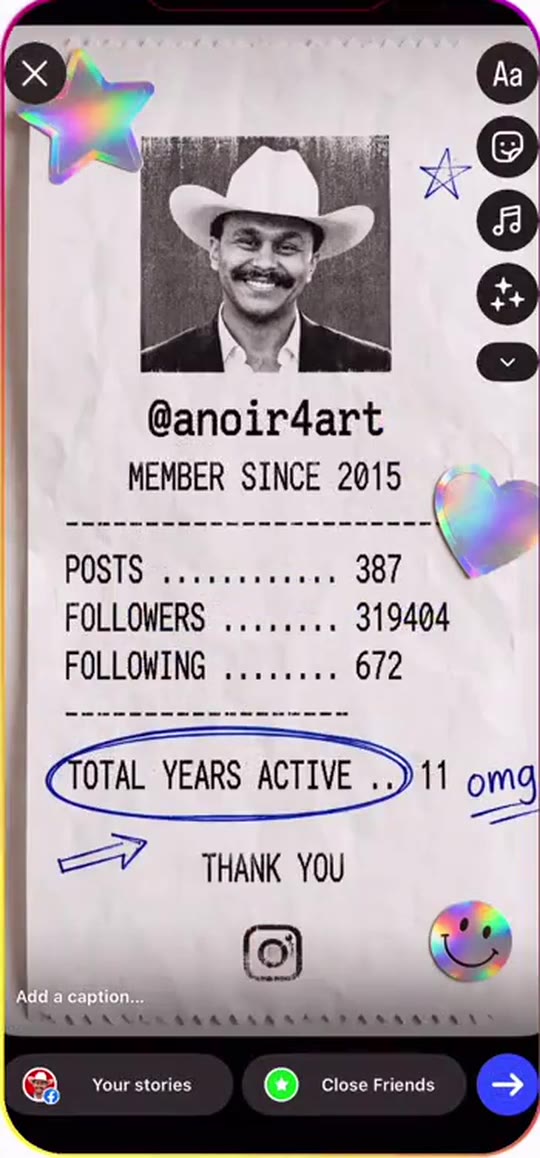
The Chinaza dynamic filter is a short AI video of a person laughing, leaning into the camera and throwing their hands in the air, and you can make your own from one photo of an adult. It is not a camera filter: it is a generated 5-second clip, and the sound is already on it when you download it.
This guide goes past the basics on the Chinaza dynamic filter AI page. It covers what each second of the clip does, why the close-up is where likeness slips, how a motion reference works, what is confirmed about the trend and what is not, and what to check before you post.
Key takeaways
- One clear photo of one adult is the only input, and the clip comes out at 5 seconds with the trend sound already on it.
- The lean into the lens is where faces drift most, so choose a sharp, front-facing photo with your shoulders visible.
- A single pack is 10 credits for $6.99, and a 5-second Standard 720p video costs 10 credits. Basic is $29.90 a month.
- The origin, the meaning of the name and the song title are unconfirmed, so we do not claim them.
- Label the finished clip as AI-generated before you publish it.
In this guide
- What happens in the clip, second by second?
- Why is the lean-in the hardest second for AI?
- What kind of photo gives the most stable result?
- How is a motion reference different from a text prompt?
- Why is the AI clip 5 seconds when the template runs about 14?
- What is a CapCut template, and how is this different?
- How far has it spread, and what is still unconfirmed?
- What does a first attempt cost in practice?
- Does the video come with the trend sound?
- Should I label the video as AI-generated?
What happens in the clip, second by second?
The clip is five one-second beats, and every version of the trend follows the same order. In the first second the person laughs and throws one arm toward the lens. In the second they lean right up to the camera with the mouth wide open. In the third they pull back, both open hands rise beside the head and the head tips back.
The fourth second sweeps the arms out wide with the palms up, as if asking the whole room a question. The fifth brings them back to centre and gestures at the lens again, so the clip is ready to loop. Knowing the order helps you choose a photo: the arms are busy from the first frame, so they need to exist in your picture.
Why is the lean-in the hardest second for AI?
The lean-in puts the face closer to the camera than at any other point, so it fills most of the frame. Any small error in the jaw, cheeks or eye shape becomes obvious at that size, and the open mouth adds a second thing the model has to invent from a closed-mouth photo.
That is why the prompt behind the Chinaza dynamic filter page includes a face shape guard. It tells the model to keep your own width of face, jaw, chin and body weight, and never to slim or narrow you toward the person in the reference clip. It reduces the drift but cannot remove it, so treat the one-second lean as the moment to check before you post.
What kind of photo gives the most stable result?
A sharp, front-facing photo of one adult, lit evenly, with the face and upper body visible. Showing your shoulders matters more than people expect, because both arms move almost at once. If the picture is cropped to the face, the model has to guess your body, your clothes and where your hands start.
Keep the face clear. Hair across the eyes, sunglasses and hats make the likeness wander, particularly when the head tips back in the third second. Plain clothes stay more stable than busy patterns while the arms swing. This page is built for photos of adults, and we do not recommend uploading photos of children for it.
How is a motion reference different from a text prompt?
A text prompt describes a movement and hopes the model matches it. A motion reference is a short real clip that the model copies, so the arm fling, the lean and the head tip land in the same places every time. ByteDance describes Seedance 2.0 as supporting text, image, audio and video inputs, and says creators can use images, audio and video as references to control performance and camera movement.
On videosi the model gets two things: your photo as the person, and a short clip as the performance. The written instruction swaps the person in the clip for you and keeps the camera, framing and timing. Without the motion clip, models tend to produce a generic dance instead of this exact sequence. We describe the parts of the instruction on the page but do not publish it in full.
Why is the AI clip 5 seconds when the template runs about 14?
The clip on the generator page covers the core performance, not the whole routine. The CapCut template we checked on 30 October 2026 runs about 14 seconds, and the AI version keeps the five beats that define the trend and stops there. That keeps it cheap: a 5-second Standard 720p video costs 10 credits.
It also keeps the clip stable. Shorter renders give the model fewer seconds in which to let a face or hand drift. If you want a longer post, you can place the clip inside a longer edit in your usual editing app and use it as the punchline.
What is a CapCut template, and how is this different?
CapCut's own help centre describes templates as reusable designs rather than finished videos. A template gives you a structure with slots for your media, and the Chinaza dynamic filter is spread mostly through templates of that kind. It is not a TikTok camera filter you switch on while recording.
The AI route works the other way around. Instead of dropping your photo into slots, you upload one photo and receive a finished 5-second MP4 with the trend sound already on it. You can read how templates work on the CapCut Help Center, and you can still bring the finished clip back into CapCut if you want to add captions or cut it into a longer video.
How far has it spread, and what is still unconfirmed?
The earliest dated tutorial we found was posted on 27 September 2026. English and Spanish tutorials followed through October, one tutorial had reached 2.2 million views by 30 October 2026, and the CapCut template we checked showed more than 160,000 uses the same day. We track the trend as spreading, which means it was still growing when this page was published.
Several things are not confirmed. We have not identified who made the first clip, we could not verify where the word Chinaza comes from, and we could not confirm a song title or artist for the sound, which most tutorials label only as an original sound. We would rather leave those blank than guess, and we will update the page if a reliable source appears.
What does a first attempt cost in practice?
There is no free generation. A single pack is 10 credits for $6.99, which is enough for one 5-second Standard 720p video on this page. If you expect to try several photos, a Basic plan is $29.90 a month. Other models and resolutions cost different amounts, and the price is shown before you press Generate.
Because the result depends on the photo, it is worth spending a minute on the choice before paying. Pick the sharpest picture with your shoulders in frame, and avoid the ones with hats or hair over your eyes. If a render fails, times out or is blocked, the credits are returned automatically.
Does the video come with the trend sound?
Yes. The trend sound is added to the finished clip after the video is rendered, so you can download the MP4 and post it as it is, with no separate audio step. The audio is the same shared sound that other versions use, which is part of why the clips are recognisable as the same trend.
The mouth moves expressively through the performance but does not lip-sync exactly to the words, so a few moments will not line up. That reads as a laughing performance rather than a precise sync, and it is worth knowing before you post.
Should I label the video as AI-generated?
Yes, label it. Platforms are tightening their rules on realistic synthetic video, and a clip of a real-looking person doing something they never filmed is exactly that case. YouTube's help page on disclosing GenAI content says creators must disclose AI-generated or altered content that seems realistic, and that repeated failure to disclose can lead to penalties.
Use your own photo, or the photo of an adult who has agreed to be in the video. Use the label or toggle that each app offers when you upload, and add a short note in the caption if you like. It costs nothing and keeps the joke from being mistaken for real footage. For more on the page itself, see the Chinaza dynamic filter generator.